Why is my camera or microphone not working?

Cam/mic troubleshooting
As soon as you open the Vidyard browser extension to record a video, you'll see your camera and microphone options in dropdown menus on the main page, along with an audio test that shows whether the extension is picking up the microphone you've selected.
If you're experiencing audio problems or your camera isn't working, we're here to help!
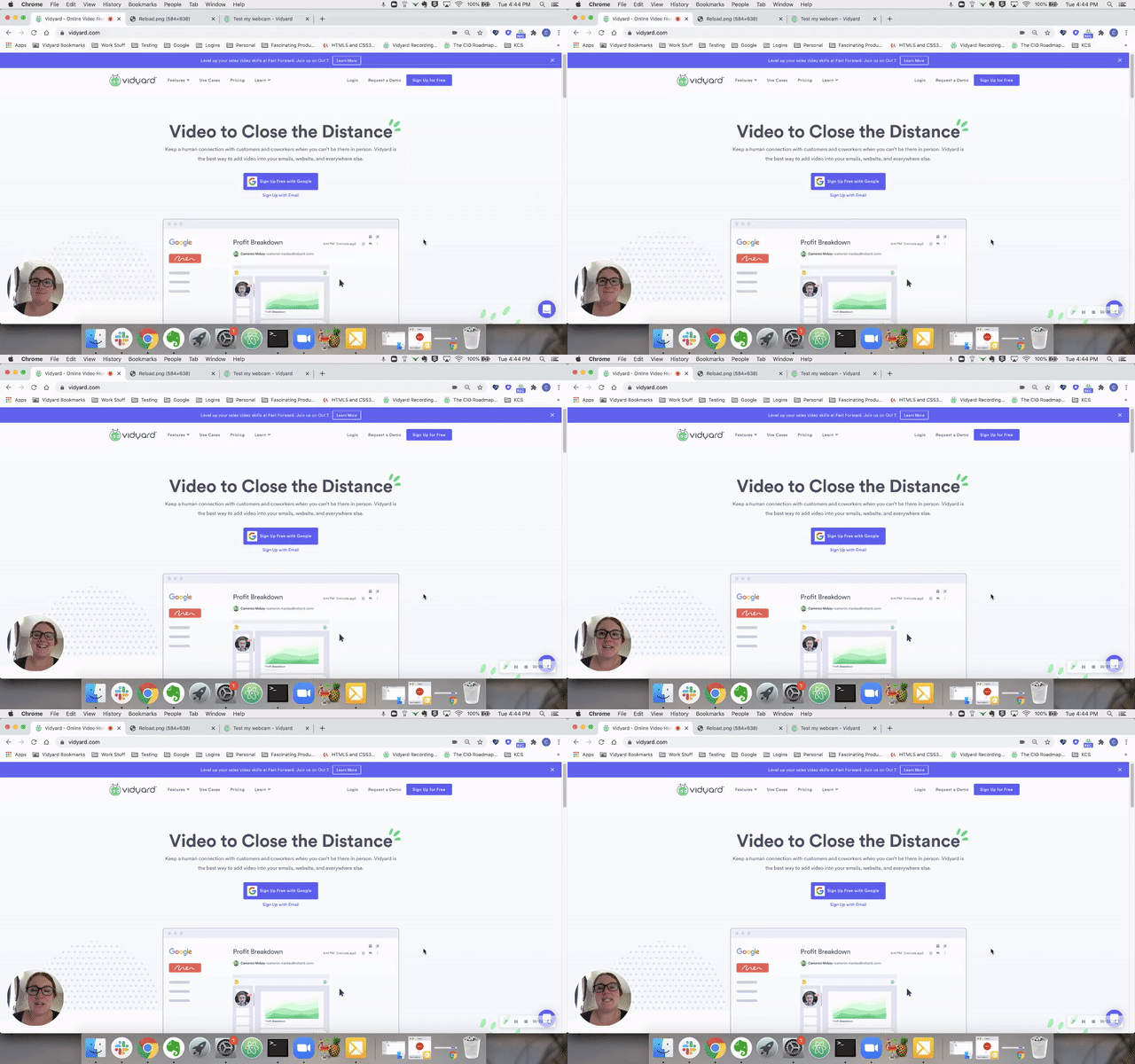
Try the steps in the article below, or watch the video for basic troubleshooting steps to fix problems with your camera and microphone.
Step 1 - Test your camera and microphone
To help isolate the problem, first try the Vidyard cam and mic test.
If your camera and/or microphone do not work during the test, the problem is likely with your browser settings or your device locally.
- ✅ Check your browser's cam and mic permissions
- ✅ If you're using an external camera/mic, check for software driver updates from the manufacturer
If your cam and/or mic work during the test, then the problem is likely within Vidyard.
- ✅ Reload or re-add the browser extension
- ✅ Restart your browser
- ✅ Restart your computer
Step 2 - Check your browser permissions and inputs
Make sure your browser has permission to use your camera and microphone, and that the correct camera or microphone is selected from the input dropdown menu. You can make these changes in your browser's site settings.
On Chrome or Microsoft Edge:
- Open the menu (the three dots ⋮) in the top right-hand corner of your browser
- Select Settings > Privacy & Security > Site Settings
- Ensure that your Camera and Microphone both have Ask before accessing set to ON
- Ensure that the camera and/or microphone you want to use is selected from the dropdown menu
- Check that both Vidyard and the website that you're trying to record from are not listed under the blocked section.
You can also ensure your permissions are correct by returning to the webpage where you're attempting to record.
- Click on the lock icon next to the website URL
- Select Site settings (or Site permissions, if using Edge as your browser)
- Ensure you have "Allow" selected for both camera and microphone
- Restart your browser
- On Mac: press "Command" + "Q" on the keyboard to perform a hard quit
- On Windows: close down all browser windows
Step 3 - Grant apps access to your camera & microphone
To use your camera or microphone, you may need to grant your browser access to your computer's camera and microphone. Follow the steps below, depending on your operating system.
Windows
- Open Settings > Privacy & security
-
Select Camera or Microphone under App permissions
-
Set the toggle for Let desktop apps access your camera/microphone to On
Note: You may also need to select Screenshots and apps as well to allow specific apps to record your screen.
Mac
If you use macOS (Mojave or above), make sure you've granted your browser access to your computer's camera and microphone in your System Preferences.
- Open System Preferences > select Security & Privacy
- Select Camera or Microphone
- Select the checkbox next to an application to allow it to access your camera or microphone.
Note: You may also need to select Screen Recording as well to allow specific apps to record your screen.
Step 4 - Reloading or reinstalling your extension/browser
If your camera and microphone work with the cam & mic test, the extension may be having trouble recognizing your devices. Start by reloading the browser extension. If necessary, reinstall the extension altogether.
Open the browser extension, then click the Settings icon . Select Reload.
Still having problems? Remove and then re-add the extension to your browser.
- Right-click on the Vidyard browser extension, then select Remove from Chrome/Edge
- Reinstall the browser extension
- Chrome: go to the Google Chrome Store
- Edge: go to the Microsoft Add-ons Store
If the problem has not yet been resolved, uninstall and reinstall your browser completely. This may help if there are driver connection problems and the browser has difficulty recognizing an available camera or microphone.
Step 5 - Check for driver updates (external camera and microphones)
A driver is software that allows your computer to communicate with hardware devices. Without drivers, the devices you connect to your computer—for example, an external camera or microphone—won't work properly.
- If you use MacOS, ensure that you have the latest system software updates
- If you use Windows, you can allow Microsoft to automatically check for driver updates.
Otherwise, visit the online support portal for your device's manufacturer. Use your device's serial or identification number to check for software updates.