How to use chapters in your videos

You can use Chapters to break a video into smaller sections, each with its own marker along the video timeline.
Chapters add helpful context to each section of the video and make it easy for viewers to find and (re)watch key moments. Chapters are especially useful for long-form content and help retain viewers' attention.
Any uploaded videos or videos recorded in the platform, browser extension, or apps (Gmail, Outlook, and more) will have English-language chapters automatically generated based on the video's content.
Edit a video's chapters
You can make changes to your published chapters at any time, including adding more chapters, changing their position on the video timeline, or deleting specific chapters altogether.
- Sign in to your Vidyard account, then select Library
- Select a video from your library, then scroll down to Chapters > Manage Chapters
- Edit or add chapters to your video:
- Use the timestamp fields to change the start time of a chapter
- Use the title fields to change the names of each chapter. Chapter titles appear on the video player menu as well as on each marker along the video timeline.
- Use the bin icon (🗑️) to delete chapters
- Select + Add New Chapter to include additional chapters.
- Select Publish to confirm your changes.
- Your changes apply immediately and are visible to viewers wherever the video has been embedded or shared.
- Your changes apply immediately and are visible to viewers wherever the video has been embedded or shared.
Share a link to a specific chapter
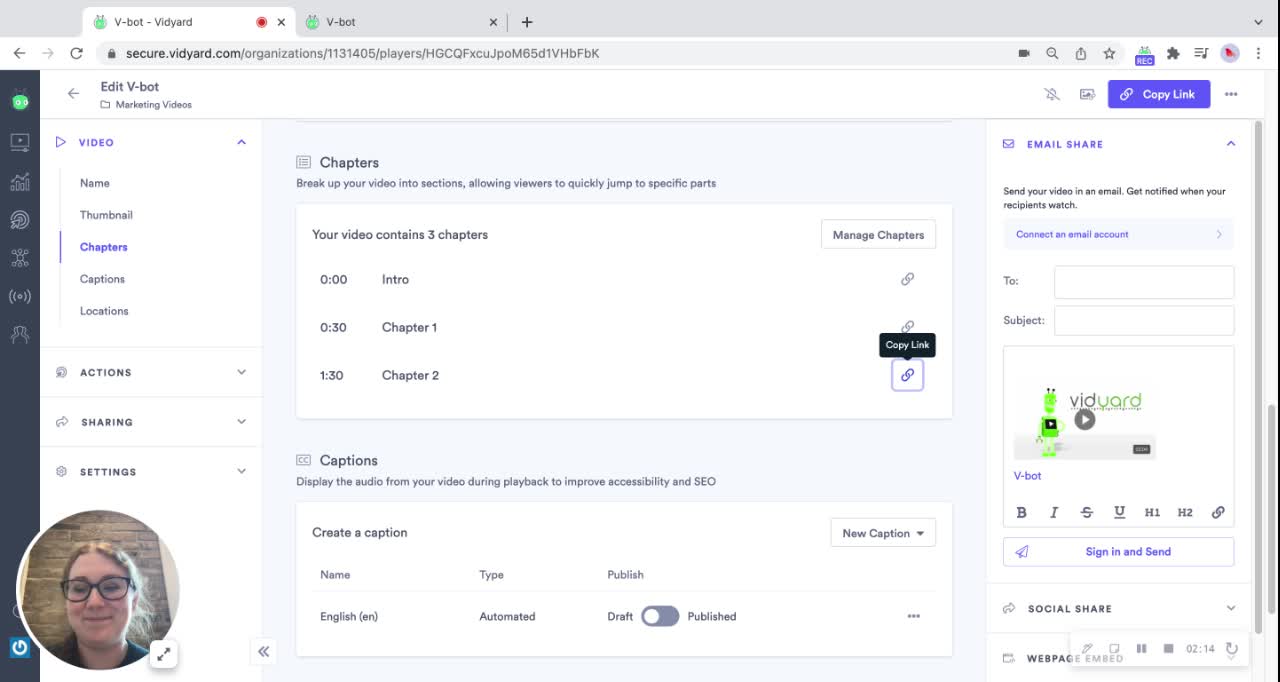
On the video edit page, you can also copy a link to a specific chapter in the video.
- Select a video from your library, then click on Chapters
- Click on the Copy link icon next to the chapter that you want to share
The chapter link adds a parameter to your video's sharing link to indicate the second in the video where the chapter begins — ?second=. For example:
https://share.vidyard.com/watch/tOKtvBFvpwnsJeL?second=90 Frequently asked questions
How are automated video chapters created?
When you upload a video or record one using our browser extension, on the Vidyard website, or in our apps (for Gmail, Outlook, etc.), we'll automatically give you clear, descriptive, English-language chapters based on your video's content. Visit the video's edit page to view or edit your chapters.
Please note that chapters will only be automatically generated if your video is at least 60 seconds long and has at least 60 seconds of speaking (or over 900 words).
Automated chapters are only available to Free accounts if they've opted in to the additional terms in their account settings. Automated chapters will not be available to paid accounts that have opted out of AI features.
How many chapters can I add to a video?
You must add at least 3 chapters to a video. Each chapter must be at least 10 seconds in length.
The maximum number of chapters is unique to each video and is determined by the number of 10-second segments that fit within the video's total length (up to 100 chapters).
When you select Manage Chapters on a video, you'll find the maximum number near the top of the page.
Why can't I change the timestamp for the first chapter of my video?
The first chapter of any video must begin at 0:00 (the very start), so the timestamp field will not be editable.
Why can't I add chapters to my video?
Video chapters are ideal for breaking up longer-form content, but can be a distraction in shorter, more focused videos.
You cannot add chapters to a video that is less than 30 seconds. If your video is under 30 seconds, you will not be able to select the Manage Chapters button to add chapters.
Why aren't chapters generating for my video?
Your video must be at least 60 seconds, or have over 900 words (60 seconds of speaking). If your video is under this length, you can still add chapters manually.
Will my chapters publish to YouTube?
No, your chapters do not automatically carry over to YouTube when you cross-publish a Vidyard video.
However, you can add YouTube-friendly timestamps and titles to the video's description field in Vidyard. That way, when you publish your video to YouTube, YouTube will automatically create chapters based on the description.
If you've already published your Vidyard video to YouTube, add the chapter timestamps and titles to the description field in Vidyard, then sync your changes to update the video on YouTube (applies to users in Business accounts).
Here's a template you can use to create video chapters on YouTube:
//Add this into the description field on your Vidyard videos:

  0:00 - Chapter 1
  0:30 - Chapter 2
  1:00 - Chapter 3
  1:30 - Chapter 4
  2:00 - Chapter 5
Are chapters viewable on mobile devices?
Yes, chapters are fully compatible with mobile devices. Viewers can see and select chapters from both the markers along the video timeline and the chapters menu in the player controls.